Getting Started with DevStash
A quick walkthrough of the most notable DevStash features: saving bookmarks, notes and code snippets, distraction-free reading, listening to articles and syncing your GitHub stars.

Save your first bookmark
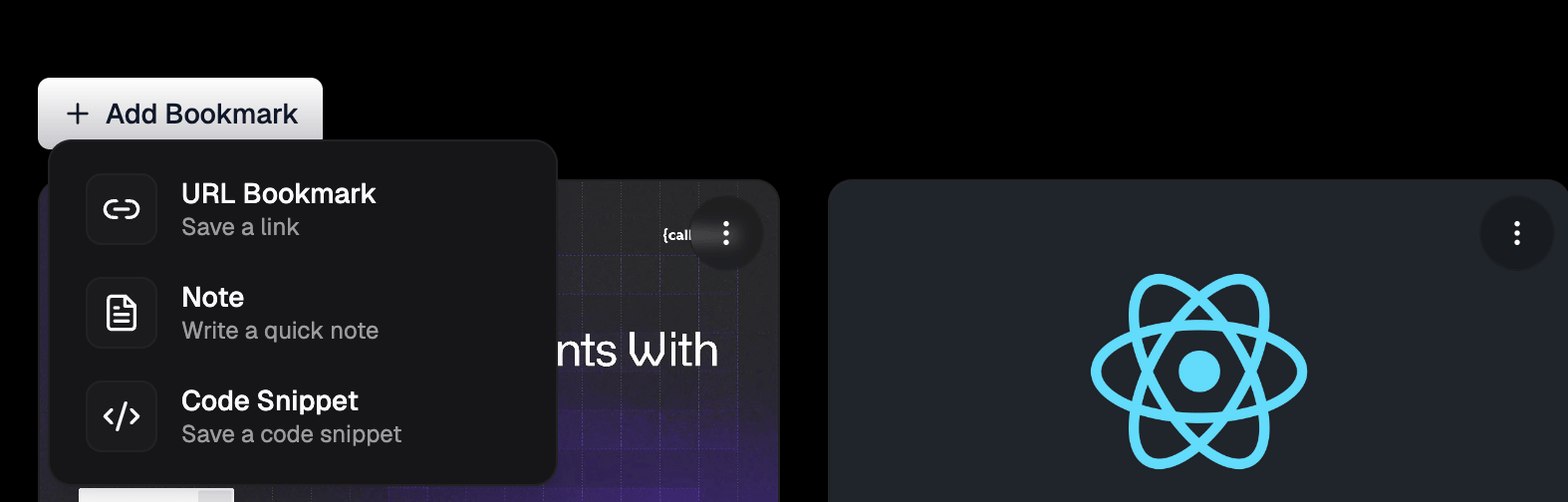
The Add Bookmark button in the toolbar opens a menu with three options. Pick URL Bookmark, paste a link, and it is saved.
DevStash then fetches the page in the background and pulls in the title, description, preview image and full article text. You can also save using the browser extensions for Chrome, Firefox and Edge, the iOS share sheet, or an HTML file exported from your browser.
Create your first note
Add Bookmark → Note opens a full-page rich text editor. Press the + to add headings, lists, to-do lists, quotes, code blocks and images. It autosaves as you type.

Save your code snippets
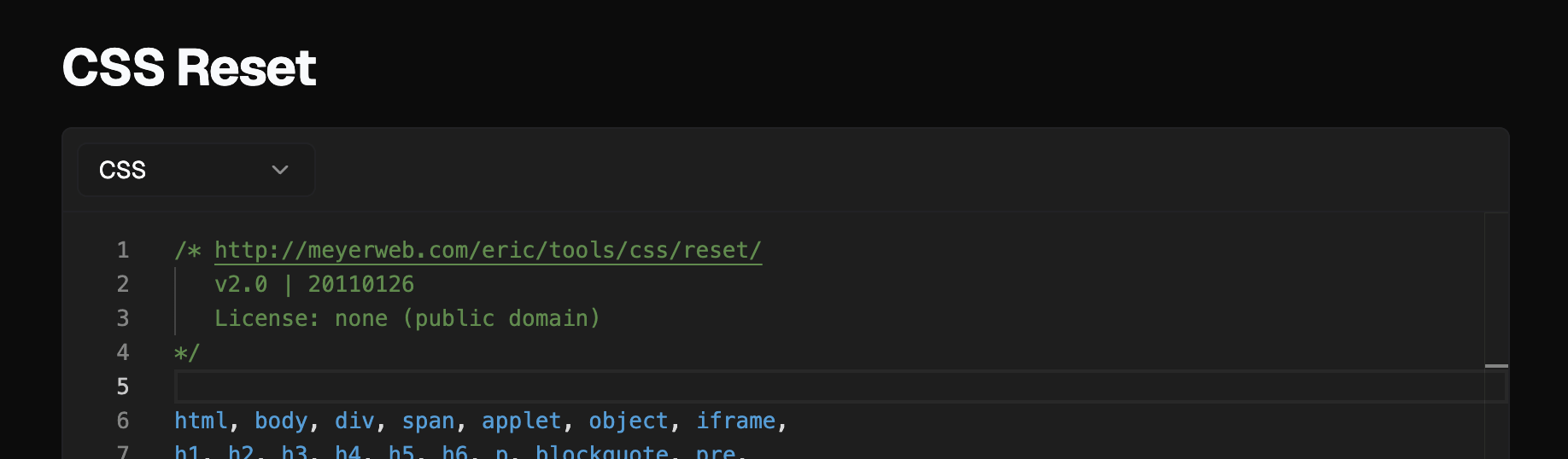
Add Bookmark → Code Snippet gives you a code editor with syntax highlighting and a language dropdown. It detects the language while you type, and if you leave the title blank, it names and describes the snippet for you.
Try distraction-free reading mode
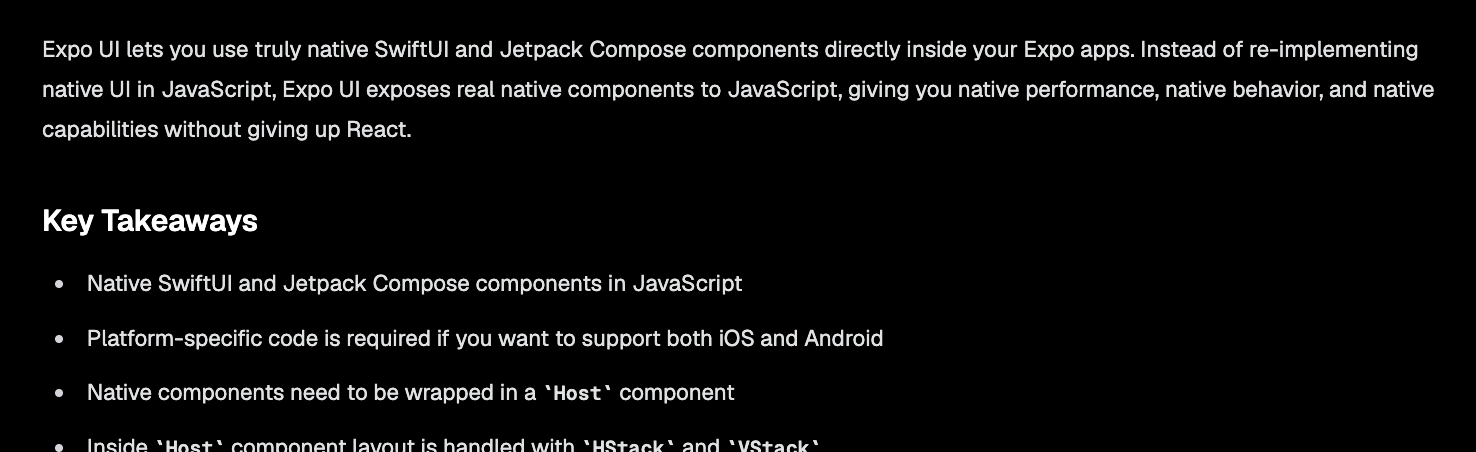
Open a saved article in Read Mode and it is stripped down to just the text, with no cookie banners, popups or sidebars, and a link back to the original.
YouTube and Vimeo links open as a player instead, with the option to pull the transcript.
Listen to articles
Inside Read Mode there is an option to Listen to article. Press play and DevStash reads the article out loud.

Sync your GitHub
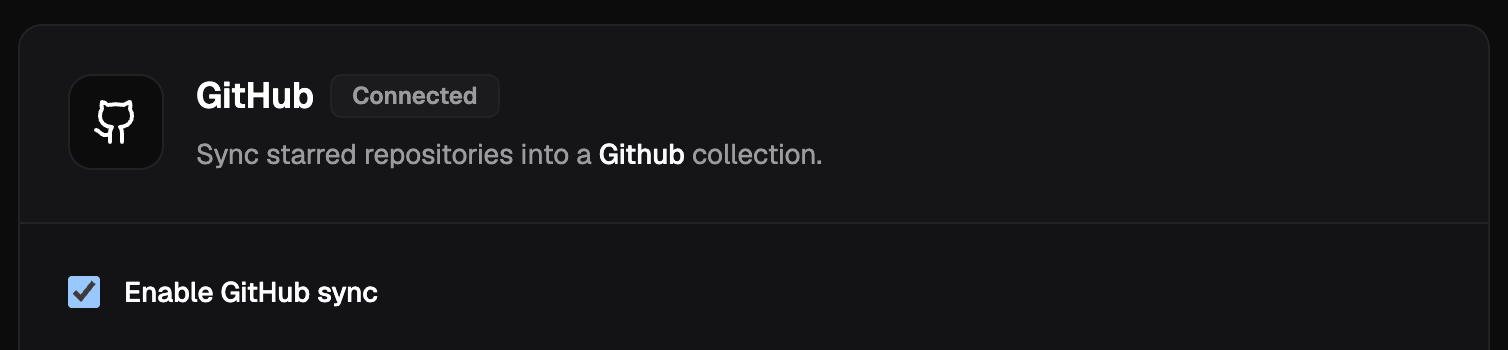
Open the settings menu, go to Integrations, enable GitHub sync and connect your account. Click Sync now and your starred repositories will be saved as bookmarks in a collection called Github.
Turn on auto-sync, and any repositories you star in the future will be saved automatically.
Ask your library anything
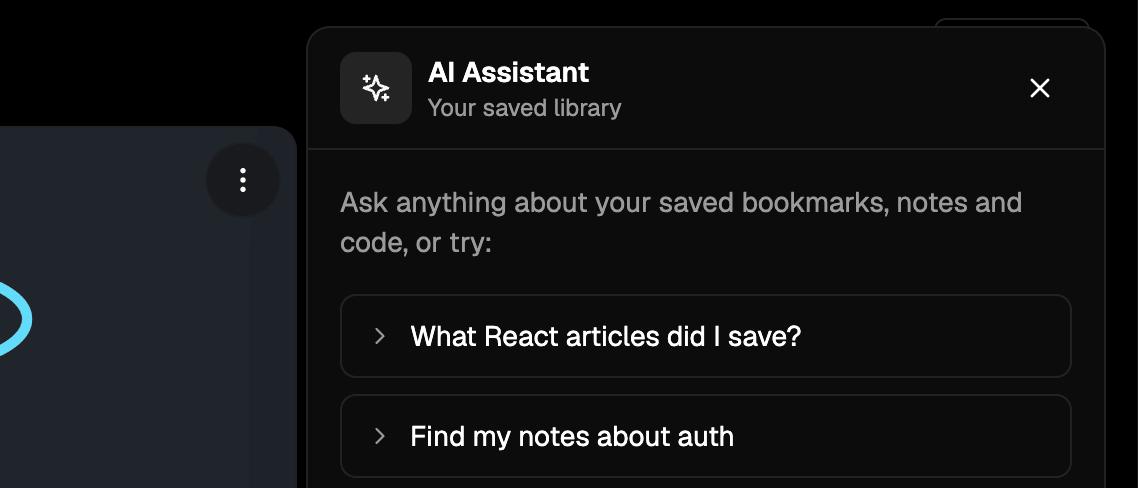
Click the AI button in the bottom-right corner to open an AI assistant that knows your previously saved bookmarks. Ask it something like, "What did I save about database indexes?" and it will answer based on the content of your bookmarks.
Open any article, note, or code snippet and tap the AI button to access quick actions like summarising the content, extracting key points, explaining code, or finding related bookmarks.